Auto-Applied Recommendations: The Silent Budget Killer in Your Client Accounts
Google's auto-apply feature changes bid strategies, expands match types, and adds keywords without asking. Most agencies don't know it's on. Here's what it's doing to your MCC right now.
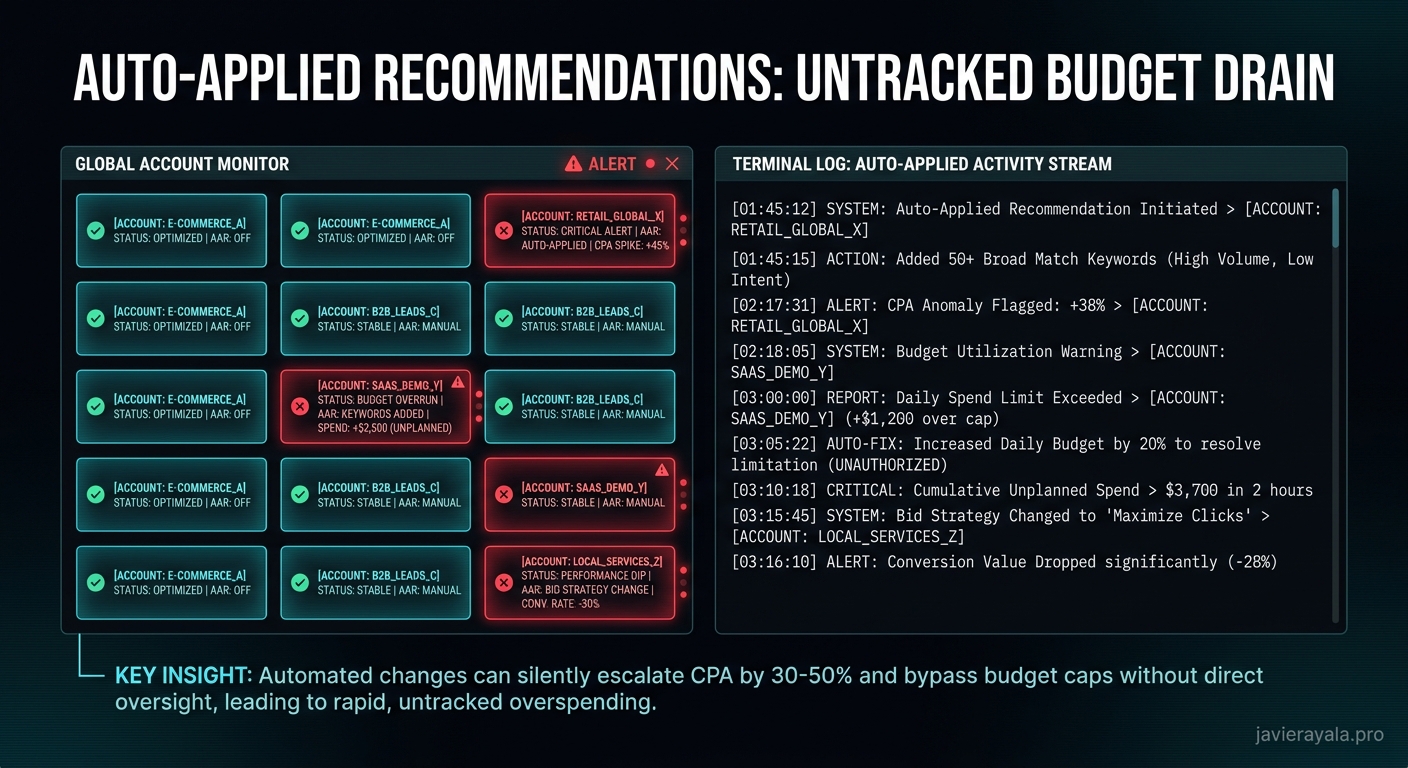
Somewhere in your MCC, Google changed something last night.
Not a suggestion. Not a recommendation you reviewed. An actual change — bid strategy modified, match type expanded, keyword added — made automatically, applied to a live campaign, while you were asleep.
It didn't ask. It doesn't send a clear notification. If you're not actively looking for it, you won't find it until the results show up in a report and you're trying to explain to a client why something shifted.
This is auto-applied recommendations. And in most agencies, it's running silently on accounts they inherited, accounts they set up years ago, and accounts where nobody ever explicitly turned it off.
What Auto-Apply Actually Does
Google's recommendation engine generates suggestions constantly — ad copy improvements, bid adjustments, keyword expansions, audience additions, match type changes, budget reallocations. In the Google Ads interface, these appear as "Recommendations" with an optimization score attached.
Auto-apply takes those recommendations and executes them automatically on a schedule, without requiring human approval for each one. Google frames this as a convenience feature. For agencies managing multiple accounts, it's a control problem.
The categories Google can auto-apply include:
- Bid and budget changes. Switching a campaign from Manual CPC to Target CPA. Raising a target CPA to "allow more conversions." Adjusting enhanced CPC settings. These changes directly affect how the algorithm spends your client's money.
- Keyword additions. Adding new keywords based on search query patterns. Broad match variants of existing terms. These run immediately and spend budget before you've evaluated whether they make sense for the account strategy.
- Match type expansions. Upgrading phrase or exact match keywords to broad match. This can multiply the queries your ads appear for overnight — including irrelevant ones that haven't been excluded yet.
- Ad copy changes. Adding new responsive search ad assets, adjusting existing headlines or descriptions based on Google's performance assessment.
- Targeting changes. Audience expansions, demographic adjustments, device bid modifier removals.
Any one of these, applied to a campaign you've spent months building a strategy around, can move the needle in ways you're not expecting — and in ways you didn't authorize.
Why Agencies Don't Catch It
The auto-apply setting is configured at the account level, buried in the Recommendations tab. When you inherit an account from a previous agency or a client who was running their own campaigns, there's no flag on the account overview that says "auto-apply is active." You have to navigate to it specifically to check.
Many accounts that have been active for 2+ years have auto-apply enabled because Google gradually rolled it out and the default for older accounts was opt-in with low friction. Agencies that onboarded clients during that period often didn't audit for it — it wasn't a standard checklist item.
The second problem is the notification layer. Google does log auto-applied changes in the change history, but the change history on any active account is noisy. A weekly review of an account with significant activity might surface 50–80 change history entries. An auto-applied recommendation sitting in that log, applied on a Tuesday at 3am, looks identical to a change a team member made manually — unless you know what you're looking for.
The result: changes are made, campaigns shift, results move, and the attribution is murky. "Was that the bid strategy change we made last week, or an auto-apply from two weeks ago?" That ambiguity is expensive — both in actual ad spend and in the time it takes to untangle.
What Actually Gets Changed (From Real Account Audits)
Across account audits run over the past 6 months, auto-applied changes appeared in approximately 60% of inherited accounts — accounts where the previous manager or client hadn't explicitly disabled the feature.
The most common categories found:
Bid strategy switches were the most impactful. Accounts running Manual CPC with deliberate bid adjustments by campaign had been switched to Target CPA automatically. Smart Bidding then took over bid control — but was optimizing toward a CPA target set by Google's recommendation engine, not by the account strategist. In one case, the auto-applied target CPA was 40% higher than the client's actual acceptable CPA. The campaign kept running. Conversions kept coming in. The CPA was quietly 40% over target for 6 weeks before the monthly review flagged it.
Match type expansions were the most frequent. Exact and phrase match keywords upgraded to broad match, often across entire campaigns at once. Search term bleed accelerates immediately — broad match variants start pulling in queries the negative keyword list wasn't built to handle at that volume. CPCs drop in some cases (broader match is cheaper per click) while conversion rates fall. The net effect is more spend, fewer leads, and a dashboard that shows "more clicks" as a positive metric while the real business outcome deteriorates.
Keyword additions created spend in unexpected areas. New keywords added by auto-apply weren't always wrong — sometimes they performed. The problem is they weren't evaluated against campaign structure, budget pacing, or the client's competitive positioning. A keyword added automatically to a campaign that's already hitting its budget cap doesn't expand reach — it reallocates spend away from proven performers.
The Compounding Problem
Individual auto-applied changes are manageable if you catch them quickly. The problem is the compound effect of multiple changes across multiple accounts, none of which were individually alarming enough to surface through a standard weekly review.
Account A had a bid strategy switched in week 1. Match types expanded in week 3. Four new keywords added in week 5. By week 8, the campaign is performing materially differently than it was at the start — but each individual change seemed incremental. The weekly reviewer saw a 12% CPA increase one week, attributed it to normal variance, and moved on. The next week it was another 8%. By the time the cumulative drift was large enough to flag, six weeks of changes had stacked.
This is why daily monitoring across your MCC needs to include a specific check for auto-applied changes — not just conversion health and CPA drift. The change itself is often the leading indicator, before performance moves.
The Fix: Audit, Disable, Monitor
Step 1 — Audit every account in your MCC for auto-apply status. In each account: Recommendations tab → Auto-apply settings. Check which categories are enabled. This is a manual check for each account; there's no MCC-level view that shows you the auto-apply status across all child accounts simultaneously.
For a portfolio of 20 accounts, this audit takes about an hour. Do it once. Build it into your onboarding checklist for every new account.
Step 2 — Disable auto-apply on every account, categorically. The argument for leaving selective categories enabled ("Google's suggestions are sometimes good") is a rationalization for not having a review process. If a recommendation is good, it will still be there when a human reviews it. If it's auto-applied without review, you've outsourced a strategic decision to an algorithm that doesn't know your client's business.
The correct process is: recommendation surfaces → human evaluates against campaign strategy → human applies if appropriate. Auto-apply skips the middle step.
Step 3 — Add auto-apply to your daily monitoring checks. Even after disabling it, Google occasionally re-enables categories after account updates or through its own recommendation flows. A daily automated scan that checks for auto-apply activity in the change history across all accounts surfaces re-enablements before they compound. The check takes seconds to run programmatically; catching a re-enabled auto-apply on day one versus week six is the difference between a quick fix and a damage assessment.
What to Tell Clients
When you audit an account and find auto-apply has been active, the client conversation is straightforward: "We found that Google was automatically changing campaign settings without approval. We've disabled this and audited the changes it made over the past X weeks. Here's what was modified, here's what we've corrected."
This conversation is an asset, not a liability. You found something, you fixed it, you have a system that prevents it from happening again. That's the proactive posture that keeps accounts.
What you want to avoid is the inverse: a client who discovers their bid strategy was changed without their knowledge, from reading their own change history, before you've mentioned it. That conversation — "why did this change without anyone telling us?" — doesn't have a good answer if you didn't catch it first.
If you want to see whether auto-apply is currently active in any of your client accounts — and what it's changed in the last 30 days — message me directly. I'll run a free scan across your MCC and show you exactly what Google has been changing without your approval. No pitch — just the audit.
// Free chain map
Find out which link is broken.
I load your site the way a real ad click arrives, check whether the click ID survives, whether your forms and calls carry a source, and where the money stops being traceable. Free, no account access needed to start.